Tiling window manager for macOS
Panevisa
Your windows, tiled into clean layouts with one keystroke, right from the menu bar.
Free. Version 1.0.0. macOS 14 or later.
SHA256 checksum: e68afadb9023ed58c189320d8cff854fbd180205560a157338dac86b67523ca5
First launch: macOS will ask you to approve Panevisa once.
How to open it
Panevisa is ad hoc signed, not notarized by Apple, so macOS needs a one time approval.
- Open Panevisa once. macOS will say it cannot verify the app. Close that message.
- Open System Settings and choose Privacy & Security.
- Scroll down to the Security section and click Open Anyway next to Panevisa.
- Confirm with your password or Touch ID, then click Open.
Permissions
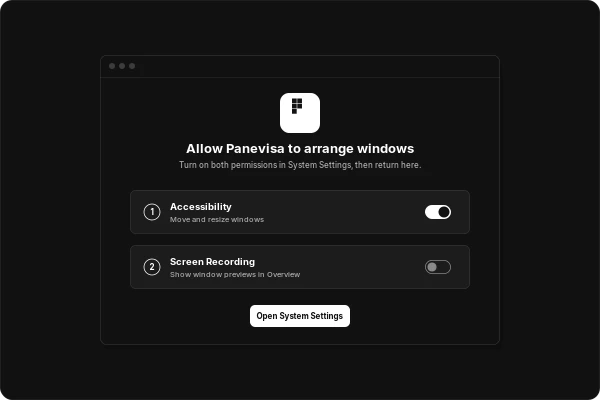
- Accessibility, required. Turn on Panevisa under Privacy & Security, then Accessibility, so it can move and resize your windows.
- Screen Recording, optional. Gives smoother animations and live window previews in Overview. Without it, Panevisa still tiles everything and Overview shows app icons instead.
01Features
Everything you need to keep windows in order


Six layouts
Tile windows into columns, rows, grids, a main pane with a stack, and more. Switch with one keystroke, or cycle layouts with one click from the menu bar.
Per monitor layouts
Each display keeps its own layout, so your laptop and your big screen can work differently.
Saved arrangements and history
Save an arrangement and bring it back later. Step back through recent layouts when you change your mind.
Workspaces
Group windows by task and jump between workspaces without losing your place.
App placement rules
Tell Panevisa where an app belongs and it lands there every time it opens.
Command palette
Type to find any action, layout, or window. No menus to dig through.
Overview
See every window at once and pick the one you want.
Tab groups
Stack related windows into one tile and flip between them like tabs.
Rebindable shortcuts
Every action can have two bindings, using keyboard keys or mouse buttons, including middle and side buttons. Change any of them whenever you like.
Pause
Turn tiling off for a moment when you need a window to float freely, then pick up where you left off.
Shortcuts app actions
Drive Panevisa from the Shortcuts app and build it into your own automations.
URL commands
Trigger layouts and actions from scripts, launchers, or links with simple URL commands.
02 Download
Tile your Mac today
Download for MacFree. Version 1.0.0. macOS 14 or later.
SHA256 checksum: e68afadb9023ed58c189320d8cff854fbd180205560a157338dac86b67523ca5
First launch: macOS will ask you to approve Panevisa once.
How to open it
Panevisa is ad hoc signed, not notarized by Apple, so macOS needs a one time approval.
- Open Panevisa once. macOS will say it cannot verify the app. Close that message.
- Open System Settings and choose Privacy & Security.
- Scroll down to the Security section and click Open Anyway next to Panevisa.
- Confirm with your password or Touch ID, then click Open.
Permissions
- Accessibility, required. Turn on Panevisa under Privacy & Security, then Accessibility, so it can move and resize your windows.
- Screen Recording, optional. Gives smoother animations and live window previews in Overview. Without it, Panevisa still tiles everything and Overview shows app icons instead.